 Sasha
Sasha Mike Chen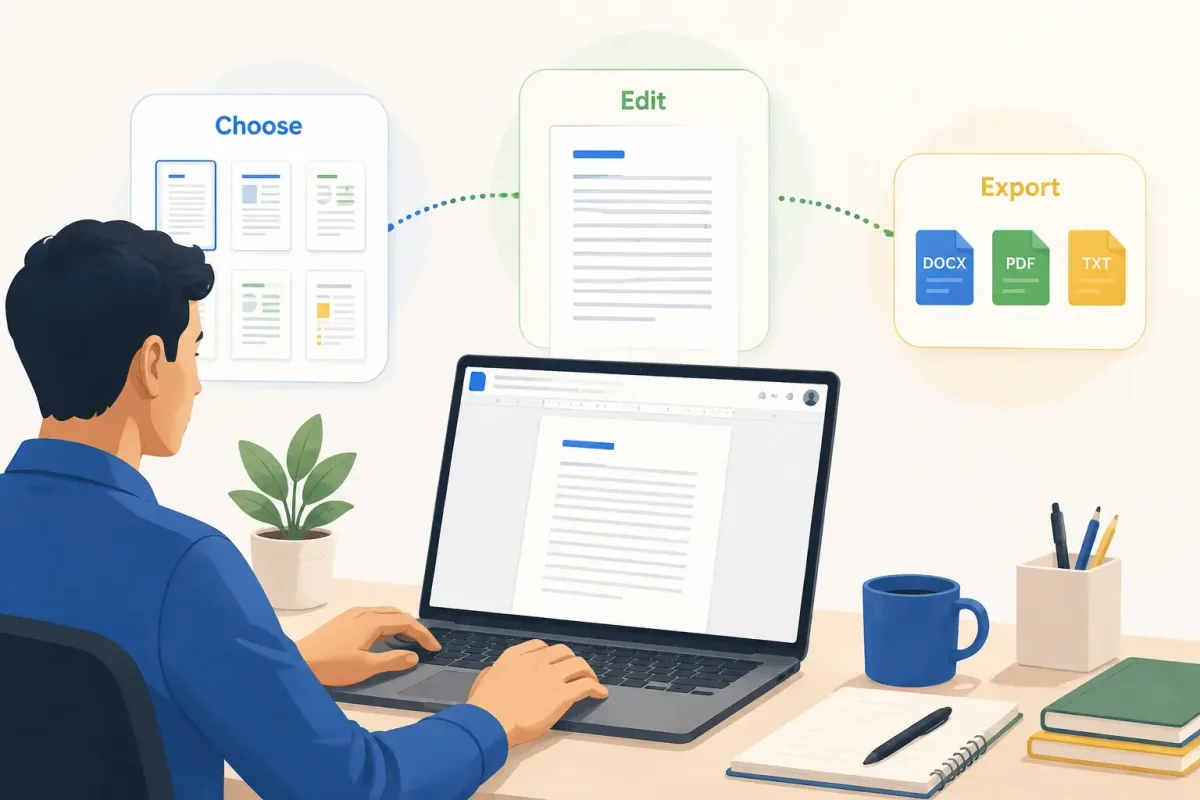
A Google Docs cover letter template is an editable letter document that you can copy, customize, and export from Google Docs.
Google Docs has a Template Gallery, but it may not show a dedicated cover letter template for every account or language. If a suitable letter template is unavailable, use a verified third-party Google Docs template or import a DOCX file.
Looking for a free Google Docs cover letter template you can edit without paying for a resume builder?
The fastest option is usually a simple, text-based template that opens in Google Docs and exports cleanly. Google Docs has a Template Gallery, although it does not consistently show a dedicated cover letter template in every account or language. You can also use verified third-party templates or import a DOCX file into Google Docs.
This guide compares the best free options we found and explains how to choose, customize, and export one for a real job application.
Access and availability last checked: July 22, 2026. Third-party templates, access requirements, and usage terms can change.
Best Free Google Docs Cover Letter Templates at a Glance
We evaluated the options below based on five practical criteria:
- no separate template fee at the time of review
- a clear Google Docs access or import route
- editable, selectable text
- a layout that can be customized without design software
- a clear source and usage terms
| Option | Best For | Google Docs Access | Sign-Up | Important Limitation |
|---|---|---|---|---|
| Career Reload Google Docs Cover Letter | Best overall direct template | Open and copy in Google Docs | Google account is needed to copy | Personal use; do not redistribute the template |
| Resume Genius Google Docs Collection | Comparing the widest range of styles | Access varies by template | Check each template's access flow | The page also promotes paid resume tools |
| gdoc.io Cover Letter Library | Role-specific and visual options | Many options use Google-based editors | Varies | Confirm the selected item opens in Docs rather than Slides or another editor |
| Google Docs Template Gallery | Fastest built-in starting point | Native Google Docs | Google account | A dedicated cover letter template may not appear in every gallery |
1. Career Reload Google Docs Cover Letter: Best Overall Direct Option
Career Reload's Google Docs cover letter template is the clearest starting point if you want one simple template rather than a long directory.
Why it stands out:
- designed specifically as a cover letter
- available for Google Docs
- simple, single-page structure
- matching resume options are available
- the provider clearly states that the free template is for personal use
Best for:
- first-time applicants
- students and recent graduates
- general business, operations, support, and administrative roles
- anyone who wants to spend more time on the writing than the design
Watch for: You may customize the template for your own application, but do not redistribute or sell the original design. Always review the provider's current license before using a third-party template.
2. Resume Genius Google Docs Templates: Best for Comparing Styles
The Resume Genius Google Docs cover letter collection presents a broad selection of template styles and explains how to access them.
Why it is useful:
- multiple visual styles in one place
- options for both traditional and modern applications
- examples of how a cover letter can match a resume
- additional guidance on filling in the template
Best for:
- applicants who want to compare several designs before choosing
- people who want matching resume and cover letter styles
- users who are unsure whether a classic or modern layout fits their industry
Watch for: Resume Genius also promotes its paid resume and cover letter tools. Confirm that the specific option you select is available without starting a trial or paid subscription.
3. gdoc.io Cover Letter Library: Best for Role-Specific Options
The gdoc.io cover letter library includes options labeled for internships, career changes, formal applications, and other scenarios.
Why it is useful:
- a large range of role- and situation-specific designs
- visual previews before you choose
- options for students, career changers, and creative applicants
- useful when a general business template feels too broad
Best for:
- internship applicants
- career changers
- users looking for a more visual design
- applicants who want a template aimed at a particular situation
Watch for: Check the editor and file type on the individual template page. Some resources on template libraries may open in Google Slides or another Google editor rather than Google Docs. Also confirm that all text remains editable and that the license allows your intended personal use.
4. Google Docs Template Gallery: Best Built-In Starting Point
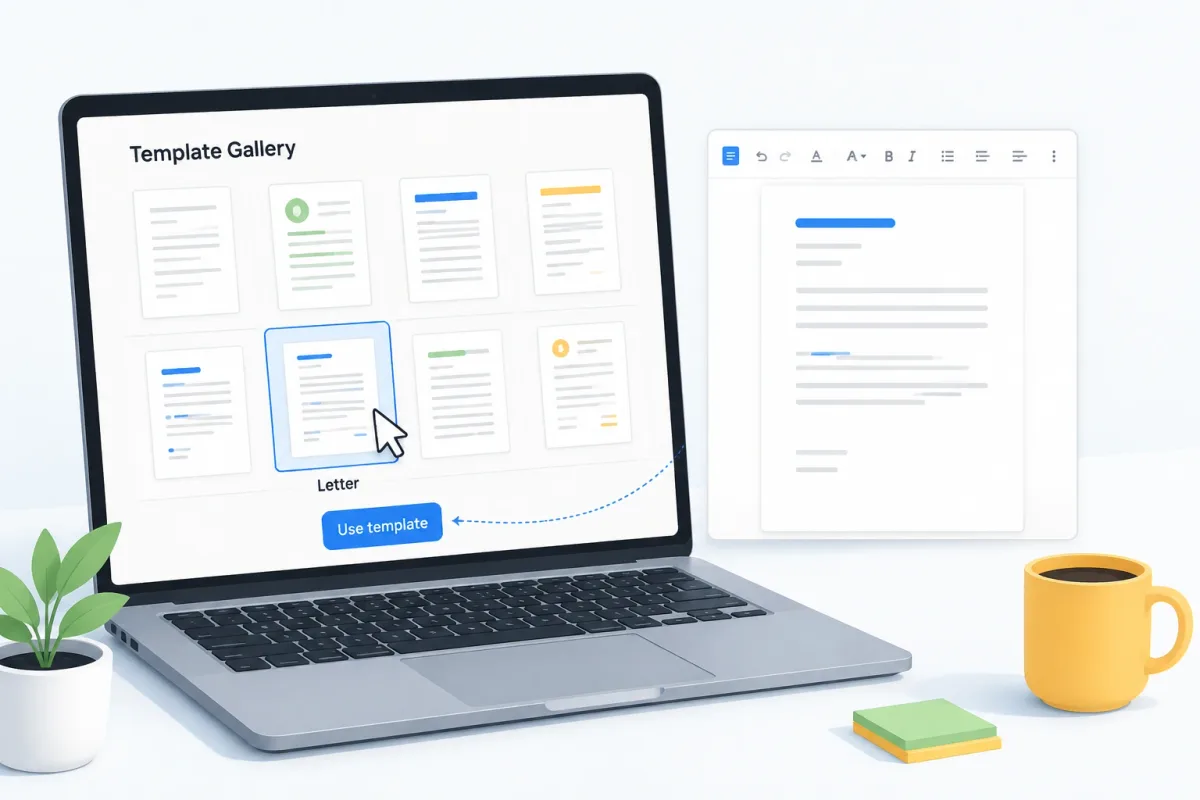
Google's Template Gallery is worth checking before you visit a third-party site. If your gallery includes a suitable letter template, selecting it creates an editable copy in Google Docs.
Google's official template instructions confirm the basic process:
- Open Google Docs on a computer.
- Select Template Gallery.
- Choose a suitable template if one is available.
- Replace the sample content with your own information.
The gallery may not display a template specifically labeled “cover letter.”
Its contents and labels can vary by language, account type, Workspace administrator settings, and product updates. If you only see general letter templates, you can adapt one, but do not force a design that does not fit a job application.
Google Docs Templates vs. Third-Party Templates
There are three common ways to create a cover letter in Google Docs.
| Route | Main Advantage | Main Limitation | Best For |
|---|---|---|---|
| Google Docs Template Gallery | Native and quick | Limited or inconsistent cover letter choices | Users who want to start immediately |
| Third-party Google Docs template | More designs and scenarios | Access, editor, and license vary | Users with a specific style in mind |
| DOCX imported into Google Docs | Large selection of Word templates | Formatting may shift after import | Users who already have a Word template |
Before choosing a third-party option, check:
- Does the link open a Google Doc, a different Google editor, or a download page?
- Can you copy and edit the text?
- Is registration required?
- Is a free template actually available without a trial?
- Does the license allow personal job-application use?
- Does the document export cleanly as PDF and DOCX?
Which Cover Letter Template Style Should You Choose?
The source matters less than the final layout. A good template should make the content easy to read and easy to customize.
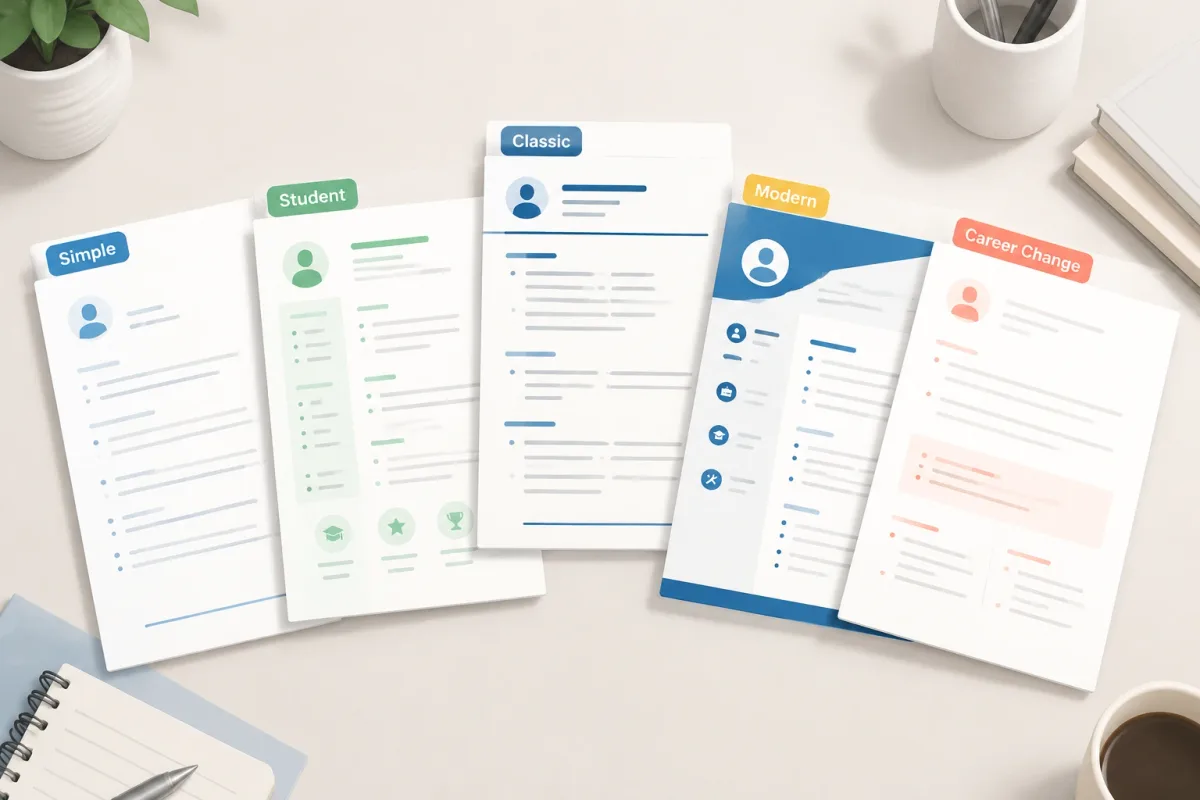
Simple One-Column Template
Best for: Most applicants and most industries.
Choose this style when you want:
- a clear reading order
- minimal formatting risk
- fast editing
- a professional appearance that does not distract from the writing
A simple template is a practical default for business, operations, customer support, sales, administrative, finance, legal, government, healthcare, and education applications.
Student or Internship Template
Best for: Students, recent graduates, and applicants without much full-time experience.
The template should leave enough space to discuss:
- coursework and class projects
- internships and part-time work
- volunteering and student organizations
- relevant skills and certifications
- results from projects, even when the scale was small
Avoid a design that pressures you to fill sections for years of experience you do not have. The goal is to present relevant evidence, not to imitate a senior applicant.
Classic Template for Formal Industries
Best for: Roles where restrained presentation is often appropriate.
Look for:
- a traditional header
- standard margins and paragraph spacing
- black text or one subtle accent color
- no decorative icon sets
- no large sidebars or graphic dividers
The writing should be the most noticeable part of the page.
Modern Template for Creative Roles
Best for: Marketing, media, design, advertising, content, and some startup roles.
A modern template can work when it still uses selectable text and a clear reading order. Keep design elements limited:
- use one accent color at most
- use consistent spacing and typography
- include a portfolio link as text
- avoid putting essential information inside images
- avoid complex multi-column layouts unless you understand how the exported file will be read
Your portfolio should demonstrate creativity. The cover letter still needs to communicate clearly.
Career-Change Template
Best for: Applicants moving between industries, job functions, or adjacent professions.
Choose a template with enough body space to explain:
- the transferable skill
- evidence from your previous work
- how that experience applies to the new position
- why the transition makes sense now
The layout should support that explanation rather than compressing it into a narrow sidebar.
Quick Template Comparison
The ratings below describe formatting risk, not guaranteed ATS performance.
| Template Style | Best For | Visual Style | Formatting Risk | Main Advantage | Possible Limitation |
|---|---|---|---|---|---|
| Simple | Most industries | Minimal | Lower | Easy to edit and scan | Less visually distinctive |
| Classic | Formal industries | Traditional | Lower | Restrained and professional | May feel basic in creative fields |
| Modern | Startups and marketing | Contemporary | Moderate | Stronger visual hierarchy | May include unnecessary design elements |
| Student | Internships and entry-level roles | Clean and compact | Lower | Makes room for projects and skills | Must still be tailored to the position |
| Creative | Design and media | More visual | Moderate to higher | Can align with a personal brand | Greater risk of unclear reading order |
| Matching Resume Set | Consistent application package | Coordinated | Depends on layout | Unified presentation | Some sets require paid upgrades |
Formatting risk is lower when the document uses one main column, selectable text, standard headings, and limited decorative elements. It is higher when the document relies on text boxes, images containing text, complex tables, or an unclear reading order.
How to Use a Google Docs Cover Letter Template
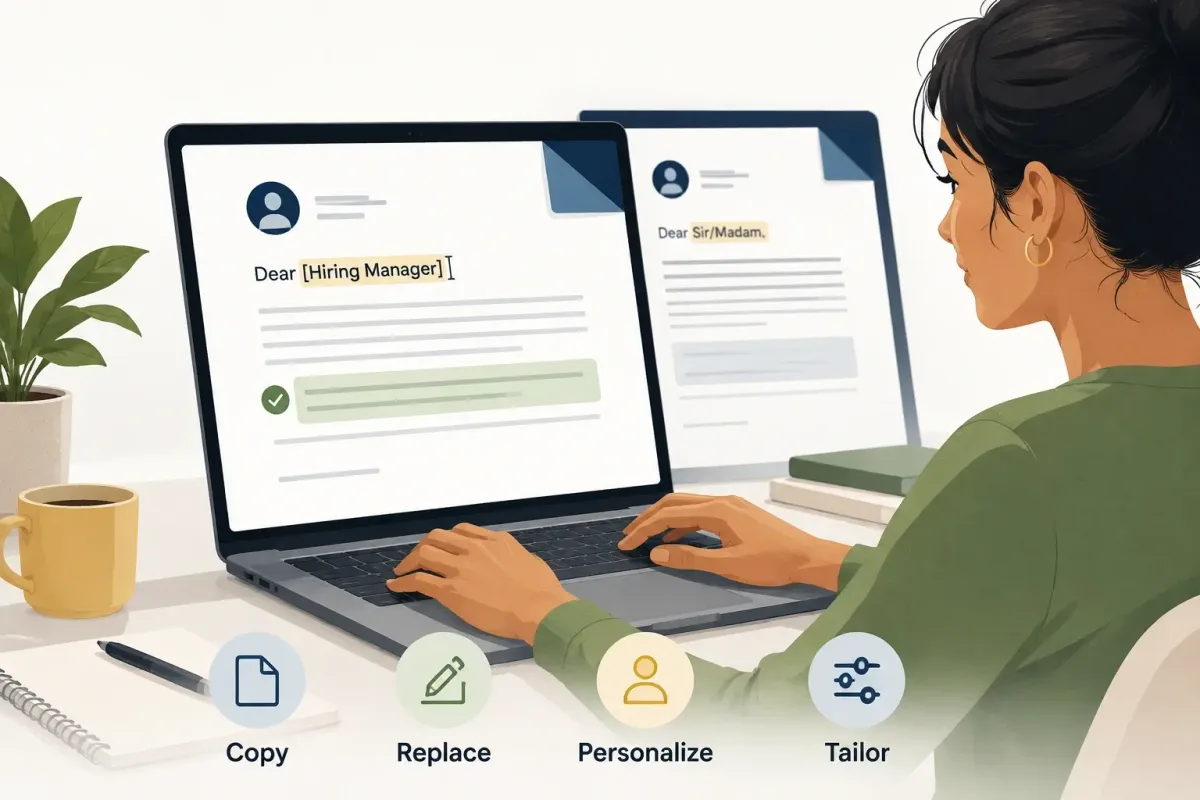
1. Create Your Own Copy
Do not edit a provider's original shared file. Instead:
- Open the template.
- If it comes from the Google Template Gallery, Google Docs normally creates a new copy automatically.
- If it is a shared Google Doc and copying is permitted, select File → Make a copy.
- If copying is disabled, follow the provider's instructions or choose another template.
- Rename the document with a professional file name.
Example:
FirstName_LastName_Cover_Letter_Company_Name
Google explains the standard copy and download controls in its file help guide. File owners can also restrict copying and downloading, so not every shared template link offers the same controls.
2. Replace Every Placeholder
Update the surface information before writing the body:
- full name
- phone number
- professional email address
- city and state or region
- LinkedIn profile, if relevant
- date
- company name
- hiring manager's name, if known
- exact target job title
Search the finished document for brackets, placeholder labels, the original company name, and sample contact information.
3. Personalize the Greeting
Use a real name when you can verify it. If you do not know the person's preferred title, using their full name avoids guessing.
Good options include:
- Dear Jordan Johnson,
- Dear Hiring Manager,
- Dear Marketing Hiring Team,
Avoid “To Whom It May Concern” when a more specific team or role is available.
4. Customize the Content for the Job
A template provides structure, not a finished application. Use a four-part framework:
- Opening: Name the role and explain why it interests you.
- Evidence: Give one or two relevant strengths supported by examples.
- Connection: Explain why your experience fits this company or team.
- Closing: Express interest in discussing the role and make your contact information easy to find.
Do not leave the template's example text in place. Generic or mismatched details can signal that the application was not carefully tailored.
What to Write in Each Section
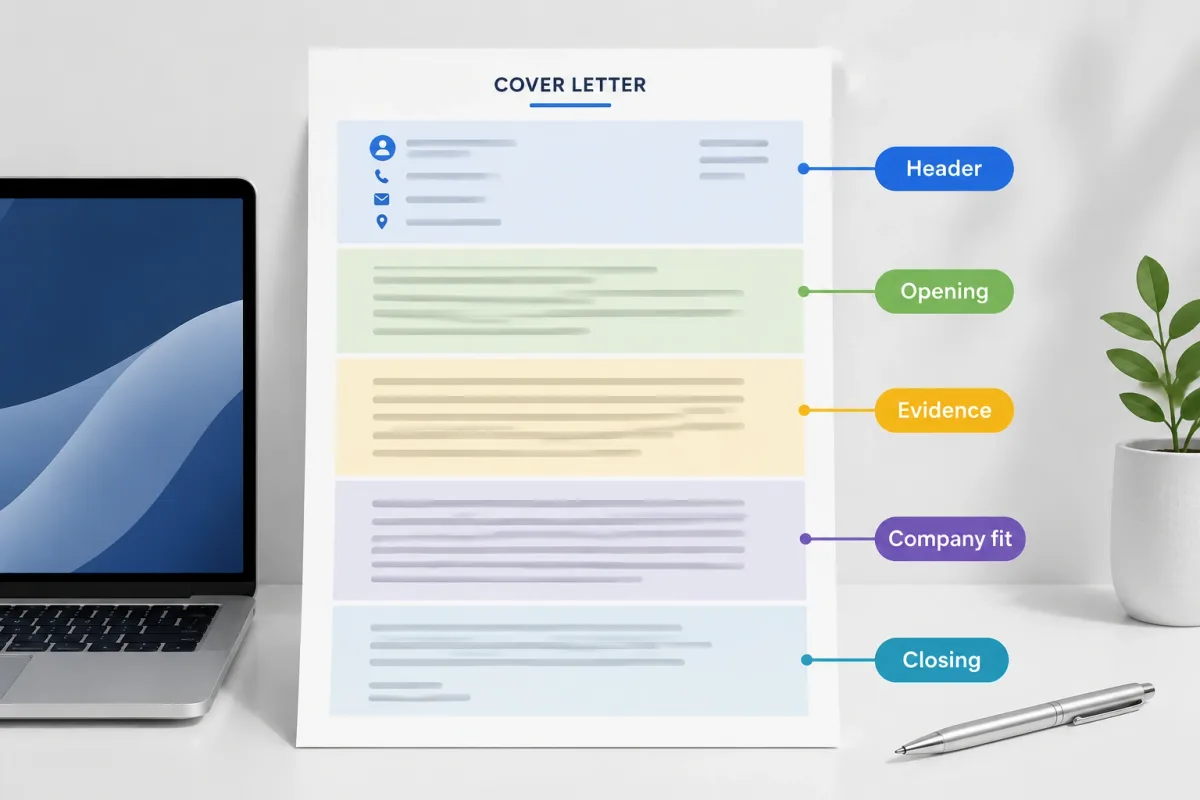
Header
Include:
- full name
- phone number
- professional email address
- city and state or region
- LinkedIn or portfolio link, when relevant
You generally do not need to publish your full street address.
Opening Paragraph
Use three to five concise sentences to answer:
- What position are you applying for?
- Why are you interested in the role or organization?
- What is your strongest relevant qualification?
- Did someone at the organization refer you, if applicable?
Avoid spending valuable space explaining where you found the listing unless that detail is requested or relevant to a referral.
Evidence Paragraph
Use achievement-oriented writing:
Action + Skill + Result
Example:
I created a segmented email campaign that increased event registrations by 28% over the previous campaign.
Only use numbers you can explain. If you do not have a metric, describe the scope, frequency, complexity, audience, or constraints of the work.
Company-Fit Paragraph
Show that the letter was written for this employer. Discuss:
- a relevant product, service, customer group, project, or mission
- what you understand about the team's needs
- how your experience could help
Avoid generic praise that could be sent to any company.
Closing Paragraph
End professionally:
- summarize your fit in one sentence
- express interest in discussing the role
- thank the reader for their time
- use a standard sign-off
Aim to keep the final cover letter focused and usually within one page unless the employer requests something different.
Are Google Docs Cover Letter Templates ATS-Friendly?
There is no universal “ATS-certified” cover letter template. Application systems differ in the file types they accept and in whether or how they parse, index, or display cover letter text.
Major systems commonly accept both PDF and DOCX uploads. However, guidance about parsing failures often focuses on resumes, not cover letters. A simple, text-based layout is still a sensible precaution because it reduces reading-order and extraction problems.
Greenhouse's candidate-upload documentation confirms that the system accepts several file types for cover letters and other candidate files.
Its resume-parsing guidance also warns about images, text boxes, headers, footers, tables, and column layouts.
These warnings focus on resume parsing. They do not prove that every cover letter is parsed in the same way or that a particular design will work in every system.
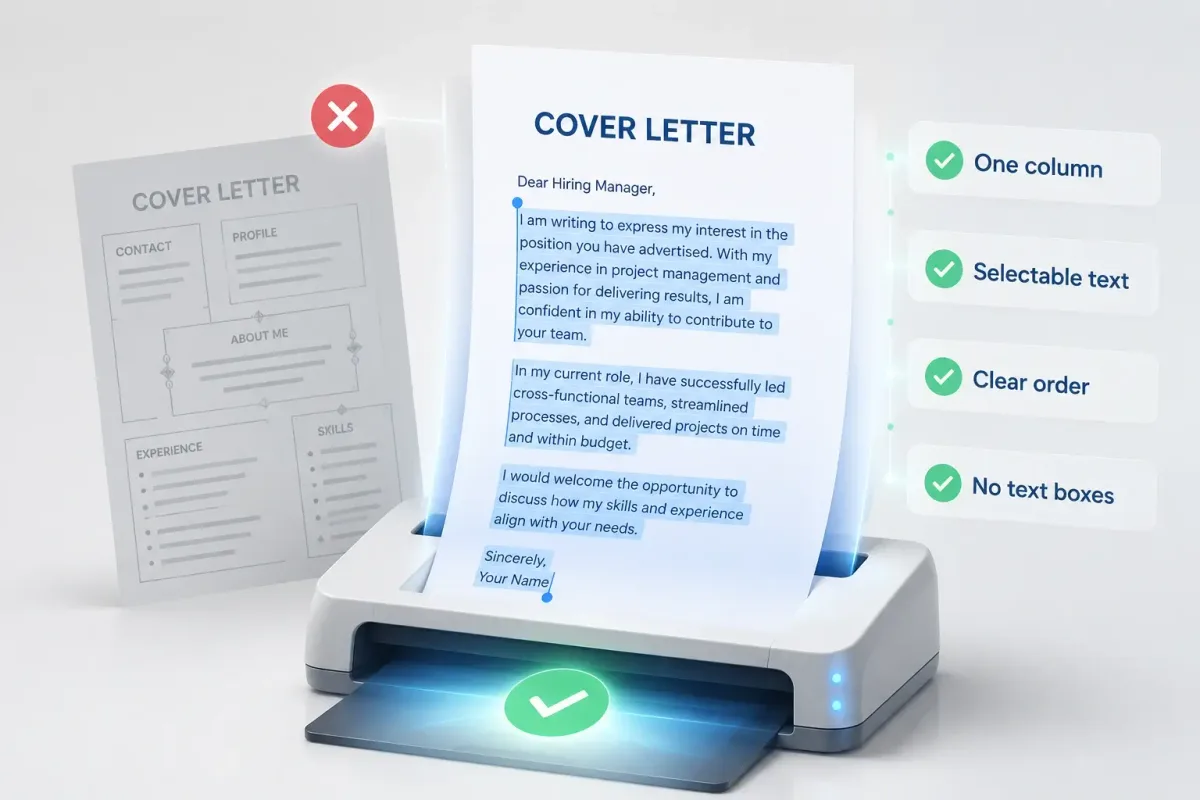
Machine-Readable Formatting Checklist
- Use one main text column.
- Keep essential information as selectable text.
- Use readable fonts and consistent spacing.
- Avoid images that contain important text.
- Avoid complex text boxes, tables, headers, and footers.
- Confirm that paragraphs appear in the correct order after export.
- Follow the file-type instructions in the job posting.
- Open the exported document before submitting it.
Tailoring Checklist
These steps improve relevance rather than document parsing:
- use the exact job title where appropriate
- reflect important skills from the job description naturally
- include evidence for the qualifications you claim
- name the correct company and team
- remove generic statements that could apply anywhere
How to Download and Submit Your Cover Letter
Follow the Employer's Instructions First
If the posting requests PDF, submit PDF. If it requests DOCX, submit DOCX. Do not send a public Google Docs link unless the employer explicitly asks for one.
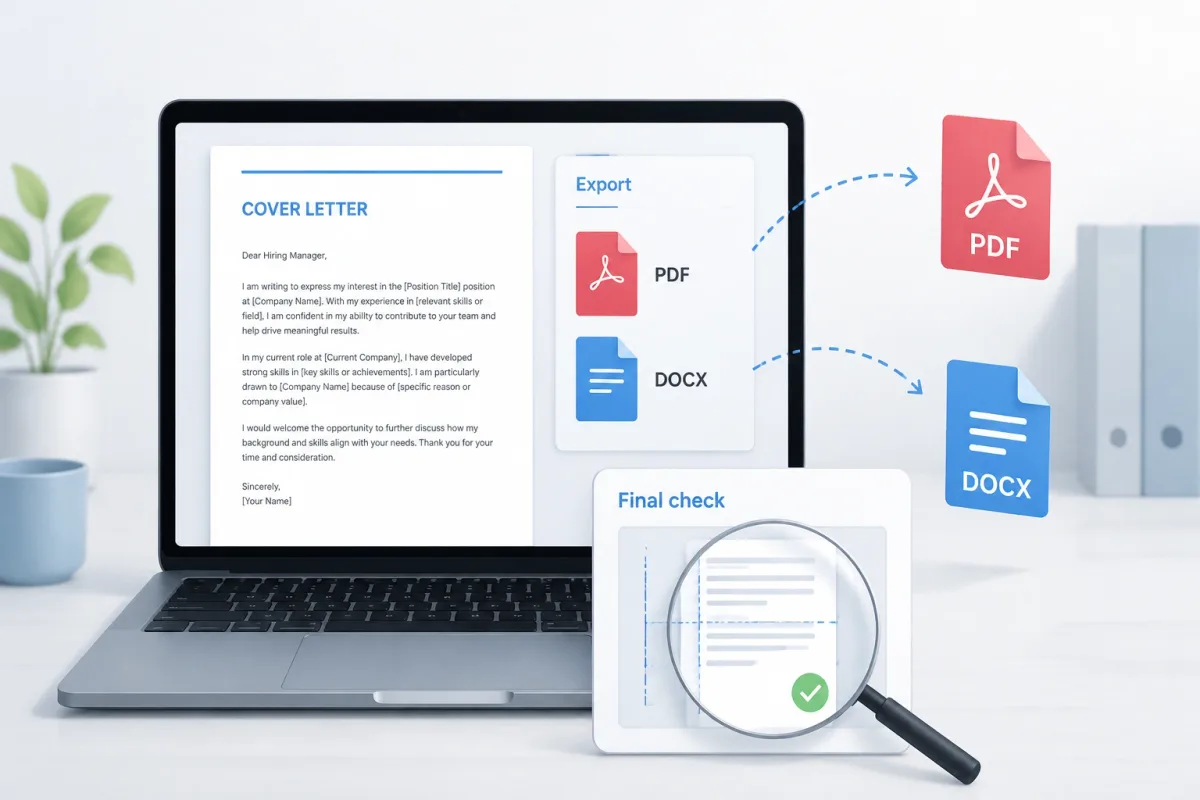
Download as PDF
A text-based PDF is useful when the employer accepts PDF and you want to preserve the page layout across devices.
In Google Docs:
- Select File.
- Select Download.
- Choose PDF Document (.pdf).
- Open the downloaded file and inspect every page.
PDF is not automatically the best format for every application system. It is a practical formatting choice when it is accepted.
Download as Microsoft Word
Keep a DOCX version available because many application systems accept it and some employers specifically request it.
In Google Docs:
- Select File.
- Select Download.
- Choose Microsoft Word (.docx).
- Open the downloaded file in a compatible viewer to check spacing and page breaks.
Final File Check
Before submitting, confirm:
- the file opens correctly
- no blank page was added
- the company and job title are correct everywhere
- the date is current
- email, phone number, and links contain no errors
- all placeholder text has been removed
- the file name is professional
Avoid file names such as coverletter-final-final2.pdf. Use something clear, such as:
Maya_Chen_Cover_Letter_Acme.pdf
Common Google Docs Cover Letter Mistakes
These mistakes can weaken an otherwise strong application:
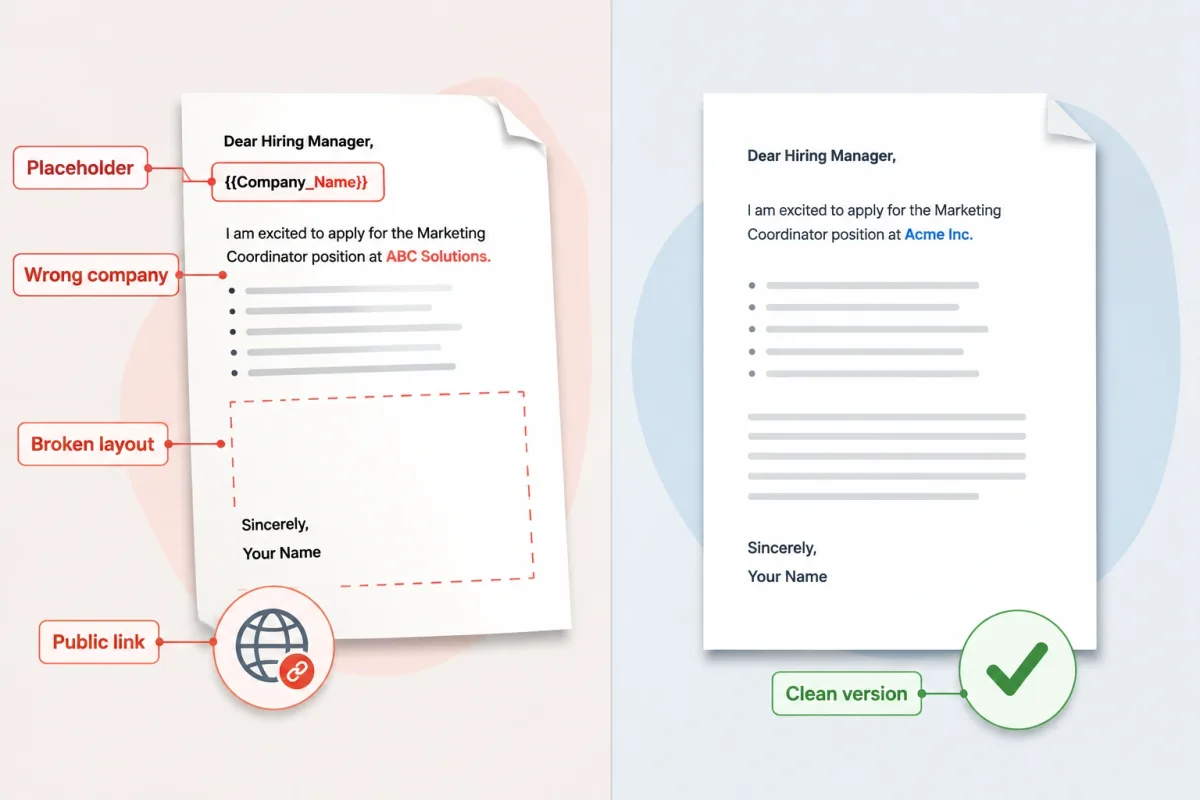
- Leaving sample or placeholder text in the document
- Forgetting to update the company name or job title
- Sending the same generic letter to every employer
- Choosing a layout with an unclear reading order
- Copying job-description keywords without evidence
- Using a cover letter design that conflicts with the resume
- Failing to check pagination after export
- Sharing a restricted or publicly editable Google Docs link
- Using an unprofessional file name
- Assuming that a template is ATS-compatible because a provider says so
Final Recommendation
If you want one direct starting point, use a simple Google Docs cover letter template such as the Career Reload option and customize every paragraph for the target job. If you want to compare styles, review a broader collection before choosing.
Whichever source you use:
- verify that the template is currently free
- confirm that you have permission to use it
- keep the final layout simple and text-based
- follow the employer's file instructions
- inspect the exported PDF or DOCX before submitting
The template only organizes the page. Your strongest advantage comes from specific evidence: what you did, what changed because of your work, and why that experience matters to this employer.
For the companion document, review what a resume is and how to make a resume stand out. Once your resume and cover letter tell the same story, practice explaining those examples aloud. A real-time interview coach such as GreatOffer.ai can help you turn the same evidence into structured answers for live online interviews.